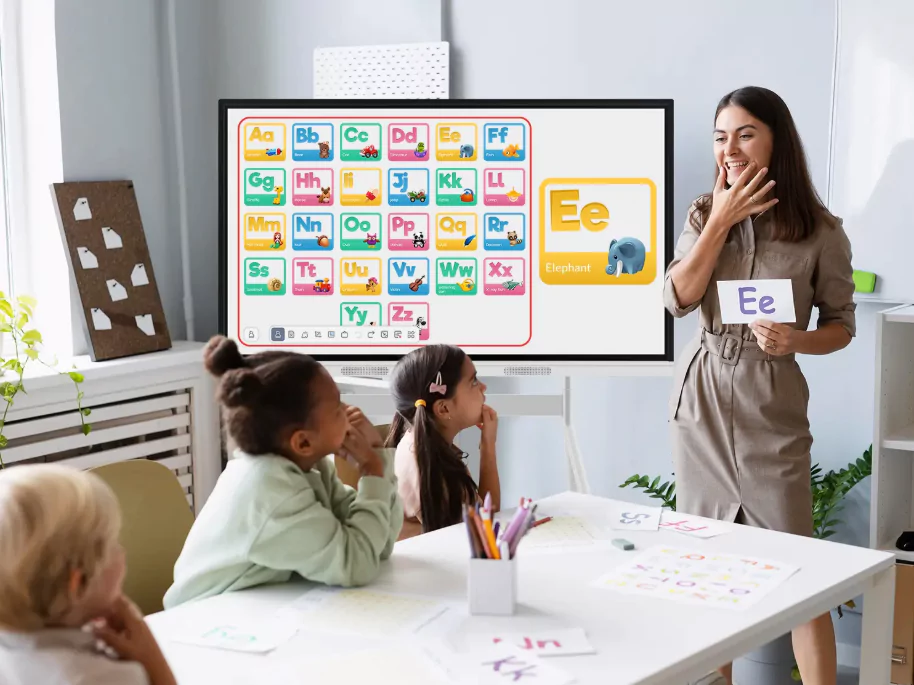
Installing an interactive display is only the first step toward improving classroom instruction. Teachers also need time to learn its functions, adapt existing lesson plans, and understand how students can participate. Without practical training and ongoing support, a new classroom device may be used mainly for showing slides rather than encouraging discussion, annotation, and collaborative learning.
For schools planning this transition, Nework offers K–12 classroom display solutions designed to support interactive teaching. Its E-Series brings lesson materials together on an interactive whiteboard, with multimedia tools, educational apps, and wireless sharing. Schools can explore the interactive whiteboard lesson guide to consider how these functions might fit their teaching routines.
Why Installation Is Only the Beginning
Classroom technology changes how teachers prepare and deliver lessons. A teacher who previously used a projector may need to learn touch controls, digital annotation, and methods for switching between learning materials. These adjustments take time, particularly when teachers have different levels of technical experience.
School leaders should therefore treat training as part of the implementation plan. A short introduction on installation day may explain basic controls, but it rarely addresses the practical questions that arise during a real lesson. Teachers need opportunities to practise common tasks before using the equipment with a full class.
A Nework smart board for classrooms can support lesson presentation and interaction, but its educational value depends partly on how confidently teachers use those functions. Schools should connect training objectives to everyday teaching needs rather than asking staff to learn every available feature at once.
Build Teacher Confidence Through Practical Training
Training works better when it follows familiar classroom activities. Teachers can begin by opening a lesson, displaying teaching materials, highlighting important information, and saving or sharing their work when the system supports those actions. These exercises provide a clear starting point without overwhelming staff with unfamiliar tools.
The next stage should introduce functions that match specific subjects. A mathematics teacher might practise writing equations directly on the display, while a language teacher could annotate reading passages or compare student responses. Science teachers may explore diagrams, videos, and other multimedia resources to explain difficult concepts.
Schools should also provide guided practice rather than relying entirely on demonstrations. Teachers can prepare a short lesson, deliver it to colleagues, and discuss any technical difficulties. This process reveals problems with navigation, file access, or lesson pacing before the display becomes part of a regular teaching schedule.
Accessibility Must Be Part of the Plan
Accessibility involves more than making digital materials available. Students differ in visual needs, reading ability, motor control, language proficiency, and the amount of time they need to process information. Teachers should consider these differences when preparing content for an interactive display.
For example, readable text, clear contrast, uncluttered slides, and well-organised diagrams can make classroom information easier to follow. Teachers can also combine spoken explanations with visual examples and written instructions. These practices help students approach the same learning objective through different forms of information.
Schools should check the actual accessibility features available on their display, connected computer, and teaching applications. Screen magnification, captions, keyboard access, and assistive technologies may depend on the operating system or software rather than the display itself. Testing these functions before lessons begin helps staff identify limitations and arrange suitable alternatives.
Make Student Participation Easier to Manage
Interactive teaching does not require teachers to replace every traditional activity. A brief annotation exercise, a shared diagram, or a comparison of two answers can introduce participation without disrupting the lesson structure. Teachers should select activities that serve a clear learning purpose.
Wireless screen sharing can also support classroom discussion. The E-Series supports wireless sharing from Chromebooks, iPads, laptops, and Android devices. Teachers can use this capability to present relevant materials from compatible devices, while students may contribute work when school policies, network settings, and classroom procedures permit.
For schools evaluating a Nework smart board for classrooms, the important question is how these functions fit existing teaching practices. Staff should test connection procedures, confirm device compatibility, and establish simple rules for switching presenters. Clear routines reduce interruptions and give teachers more time to focus on student understanding.
How Schools Can Encourage Long-Term Adoption
Teacher adoption depends on more than initial enthusiasm. Staff need to see how the equipment helps them address real classroom challenges. School leaders can encourage this process by identifying a few practical teaching goals, such as reducing time spent switching materials or creating more opportunities for student responses.
Peer support can make the transition less demanding. Teachers who become comfortable with particular functions can share lesson examples and practical tips with colleagues. Short department meetings or informal demonstrations may be easier to maintain than lengthy training sessions scheduled only once or twice a year.
Schools should also collect feedback after several weeks of use. Useful questions include whether teachers can prepare lessons efficiently, whether connection problems interrupt activities, and which functions students find helpful. This feedback can guide additional training and reveal whether technical support or changes to classroom procedures are needed.
Keep Improvement Connected to Teaching Goals
Successful implementation requires a continuing relationship between technology, teacher confidence, and student access. Schools can start with basic training, expand into subject-specific activities, and review how the equipment performs in everyday lessons. Accessibility checks and regular feedback should remain part of that process.
Nework provides classroom display options that bring interactive teaching tools into one environment. For school purchasing teams, the next step is to assess training requirements, device compatibility, accessibility needs, and support arrangements alongside product features. A considered implementation plan gives teachers a clearer path from initial installation to confident, purposeful classroom use.